How to Fix High Ping & Packet Loss in Online Games (2026 Network Guide)
Eliminate lag spikes, rubberbanding, and packet loss in Valorant, CS2, BGMI, and Apex Legends. Ethernet vs Wi-Fi 6, bufferbloat tuning, and DNS routing fixes.
Nothing causes more rage in competitive multiplayer gaming than lining up a perfect headshot, only to be teleported backward behind cover due to a sudden 150ms ping spike or 5% packet loss burst.
While most gamers blame their internet service provider (ISP) blindly, over 70% of gaming latency spikes occur inside the local home network due to Wi-Fi packet collisions and router bufferbloat.
📶 The Bufferbloat Problem
Bufferbloat occurs when family members stream 4K video or download large files while you game. Standard routers queue excessive packets in internal memory buffers, inflating your gaming ping from 20ms to 250ms during active downloads.
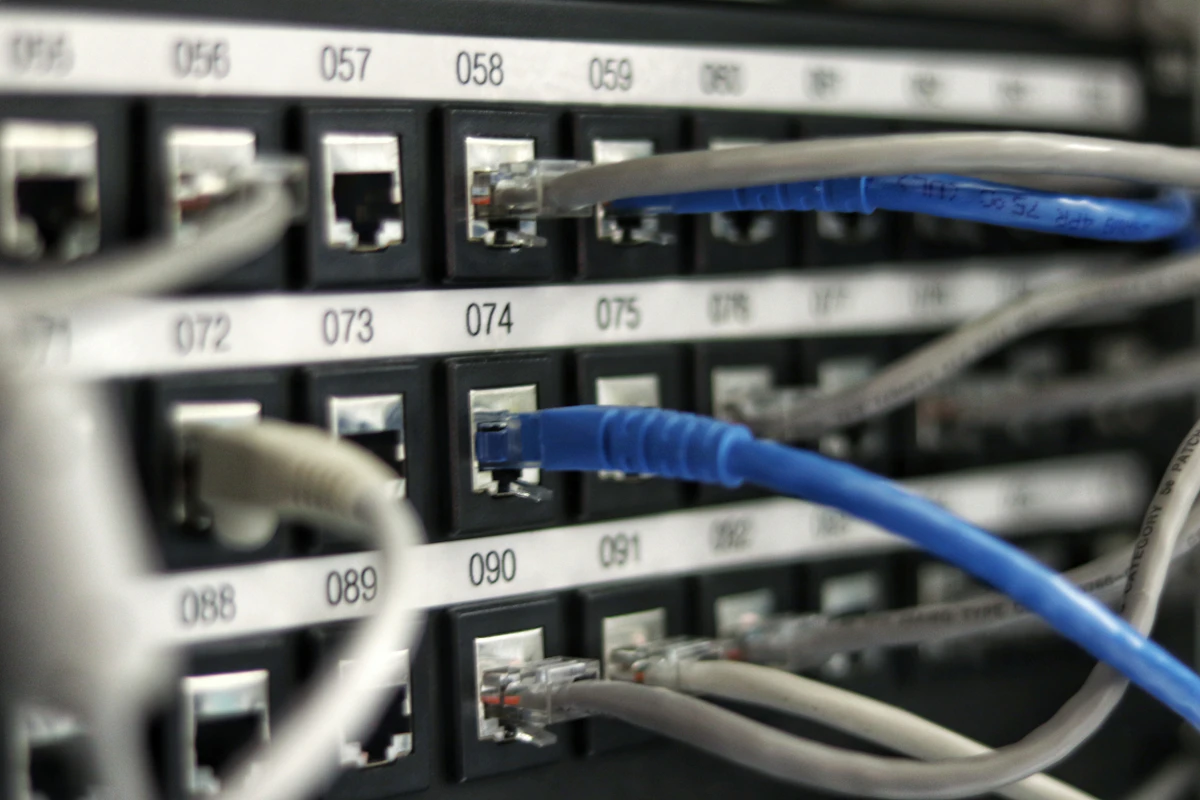
Step 1: Replace Wi-Fi with Cat6 Ethernet (Instant Fix)
Wi-Fi transmits radio frequency packets that are vulnerable to physical wall attenuation, microwave interference, and airtime contention:
- Ping Jitter on 5GHz Wi-Fi: Typically varies between $\pm 8\text$ to $\pm 35\text$.
- Ping Jitter on Direct Cat6 Ethernet: Less than $\pm 0.5\text$ with zero dropped frames.
- A basic 10-meter Cat6 flat cable running along your baseboard costs under ₹300 on Amazon and completely eliminates random Wi-Fi drops.
Step 2: Configure Fast Gaming DNS Servers
Your ISP's default DNS server can have slow query response times:
- Open Control Panel → Network and Sharing Center → Change adapter settings.
- Right-click your Ethernet adapter → Properties → Internet Protocol Version 4 (TCP/IPv4).
- Select Use the following DNS server addresses:
- Cloudflare DNS:
1.1.1.1(Preferred) &1.0.0.1(Alternate) - Google DNS:
8.8.8.8(Preferred) &8.8.4.4(Alternate)
- Cloudflare DNS:
Step 3: Optimize Network Adapter Advanced Properties
Modern Realtek and Intel LAN chips include energy-saving modes that introduce latency:
- In your Ethernet adapter properties, click Configure → Advanced Tab:
- Energy Efficient Ethernet (EEE): Set to Disabled.
- Green Ethernet: Set to Disabled.
- Interrupt Moderation: Set to Disabled (Processes incoming game packets immediately rather than batching them).
- Flow Control: Set to Disabled.
Step 4: Flush DNS Cache & Reset Windows Winsock
Open Command Prompt as Administrator and run these commands in sequence:
ipconfig /flushdns
ipconfig /registerdns
netsh winsock reset
netsh int ip reset
Reboot your computer to apply the fresh routing table.
Conclusion & Summary
Switching to a direct Cat6 cable, disabling network adapter interrupt moderation, and utilizing Cloudflare's ultra-fast 1.1.1.1 routing will stabilize your ping jitter and guarantee zero packet loss during intense ranked matches.
Get our free Gaming PC Setup Guide 2026
Complete guide to building the perfect gaming setup on any budget. Free PDF.
Related Articles
GTA 6 Radio Stations, Soundtrack Leaks & Modern Miami Music Culture Breakdown
Comprehensive breakdown of GTA 6's music ecosystem. Vice City retro nostalgia, modern Latin trap and reggaeton stations, synthwave, Tom Petty trailer legacy, and satirical talk radio podcasts.
GTA 6 Story & Protagonists Deep Dive: Lucia & Jason Backstory, Voice Cast & Narrative Themes
Narrative dissection of Grand Theft Auto VI. Lucia's background as the first 3D-era female protagonist, Jason's dynamic, Bonnie and Clyde criminal partnership, voice actor leaks, and social media satire.
GTA 6 Online 2.0: Progression Transfer, Dedicated Servers, Cfx.re FiveM Roleplay & Economy Overhaul
Everything known about GTA 6's next-gen online ecosystem. Progression reset rumors, dedicated server architecture vs P2P, Rockstar's acquisition of Cfx.re (FiveM), anti-cheat, and roleplay mechanics.